 SpeedUpSongs
Have you ever played a recording faster and noticed that voices became unnaturally high? That happens because ordinary faster playback changes the time and frequency of the sound together. To make the recording shorter while keeping voices closer to their original pitch, you need a different processing technique.
Speed and pitch are different settings
Playback speed controls how quickly audio is played. When a 4-minute file is played at 2× speed, its basic playback duration becomes about 2 minutes.
Pitch describes how high or low a musical note sounds. In normal faster playback, notes rise along with speed. A 440 Hz note played at 1.5× becomes roughly 660 Hz in linked mode.
A time-stretching algorithm attempts to adjust timing while preserving the original frequencies. It analyzes and rearranges short audio segments instead of simply playing every sample faster.
Steps: make audio faster but keep pitch
- Go to the Audio Speed Changer.
- Choose an audio file your browser can decode.
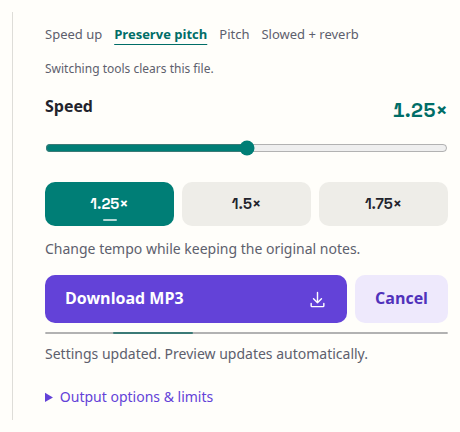
- Set playback speed. Try 1.25× first, especially for speech or music with clear transients.
- Pitch preservation is already enabled on this page. If the browser does not support this advanced mode, the editor will explain the limitation rather than silently changing the pitch.
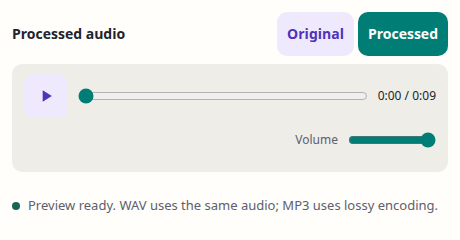
- The processed preview prepares automatically. Press Play and use Original and Processed to compare the same passage.
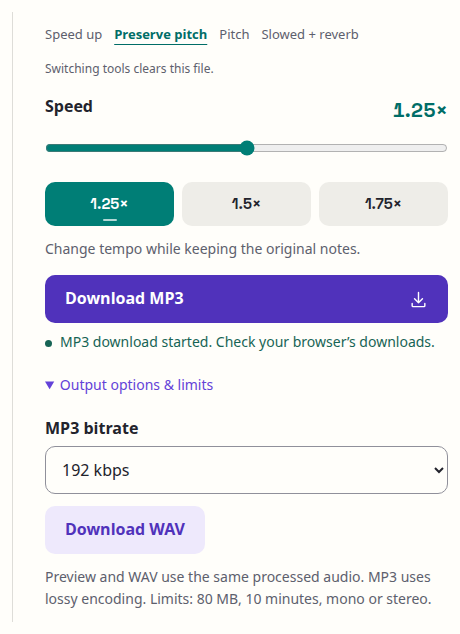
- Select Download MP3 once to process and start the download, or open Output options & limits for WAV.
Follow the steps on screen
Screenshots show the desktop editor using an original synthetic example. The same labeled controls are available on smaller screens.
1. Choose your file

2. Set the effect
3. Preview your edit
4. Save your edit
Why not always preserve pitch?
Pitch preservation is a useful tool, not a guarantee of perfect sound. The algorithm does more work than ordinary playback-rate changes. At extreme ratios, rapid drum hits may become less crisp, vocals can sound artificial and background textures may smear.
For classic sped-up music edits, changing pitch together with speed may actually be part of the sound you want. If that is the goal, use Speed Up Songs instead.
When pitch preservation is useful
- Listening to voice recordings at a higher speed without intentionally making the voice squeaky.
- Slowing down a musical passage for practice while keeping the key recognizable.
- Adjusting the duration of an original audio clip while limiting pitch changes.
Questions people ask
Does changing audio speed change BPM?
Changing playback speed changes the rate at which rhythmic events occur. For a fixed original tempo, the effective BPM scales approximately with the speed multiplier.
Can pitch still sound different even with preservation enabled?
Yes. Time-stretching may preserve fundamental frequencies while introducing texture or transient artifacts. Listen before exporting.
Can I do this on a phone?
Many modern phones can, but supported audio APIs and available memory differ by model and browser. Older devices may need a simpler speed change or a shorter recording.
Does the tool upload my audio?
No. The editing is processed on your device; the website still loads application assets over the network.