 SpeedUpSongs
You do not need a complicated audio editor to create a sped-up version of a track. For a quick edit, all you need is an audio file you have permission to modify, a browser and a speed setting you like.
Step 1: Choose an audio file
Open Speed Up Songs and choose an audio file from your device. The editor works locally: your file is decoded and edited by your browser instead of being uploaded to a conversion server. The file format must be supported by your browser; the tool will report unsupported or damaged files.
If you are working on a phone, choose a file from your device’s file picker. Files stored in a streaming app may not be available for direct editing.

Step 2: Pick your speed
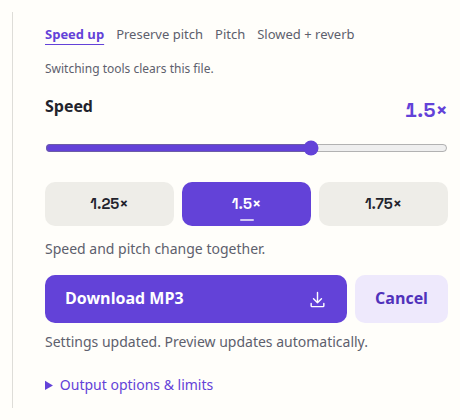
Start at 1.25× if you want a gentle increase or 1.5× for a more pronounced sped-up effect. A 3-minute track at 1.5× speed lasts about 2 minutes, before any encoder padding. As the speed increases in classic mode, the voices and instruments sound higher because their frequencies shift upward.
You can try a few settings before choosing the final version. More extreme speeds are not always better: the edited track should still be enjoyable to listen to.
Step 3: Listen to your edit
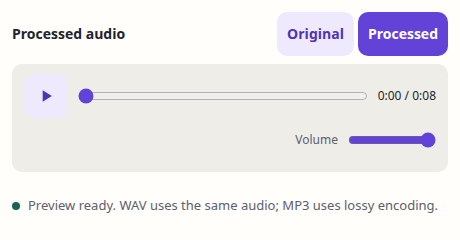
The player appears after your file is read, and the processed preview prepares automatically. Press Play to listen; use Original and Processed to compare the same passage without restarting playback. You can listen to the original while processing finishes. If the vocals sound too high or the song feels rushed, choose a lower speed and wait for the preview to update. This step saves you from downloading several unwanted versions.
Step 4: Download your edit
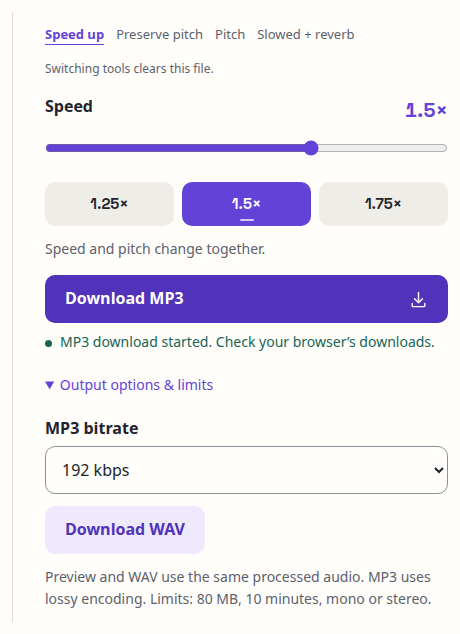
Select Download MP3 once. The editor applies your settings and starts the download automatically; you can download while the preview is still being prepared. For uncompressed PCM, open Output options & limits and select Download WAV. Your original source file is not overwritten.
What if you want faster audio without higher voices?
Classic sped-up playback changes both duration and pitch. This is often part of the recognizable effect, but it may not suit voice recordings, podcasts or some musical projects.
For speed changes that aim to keep the original pitch, open the Audio Speed Changer and enable Preserve pitch. That requires more advanced processing, so very large speed changes may introduce artifacts or be unavailable on older browsers.
Troubleshooting
Nothing happens after choosing a file? Check that the audio format is supported and that the recording is not damaged.
The page slows down on a long track? Browser-based processing uses your device’s CPU and memory. Try a shorter recording or a desktop browser.
The result sounds too high? Lower the speed or choose a pitch-preserving edit with our separate tool.
Can you share a copyrighted song after speeding it up? Only if you have the appropriate permission. A speed change does not remove rights held by the original creators.
Start your edit
Speed up a song now — no account required.